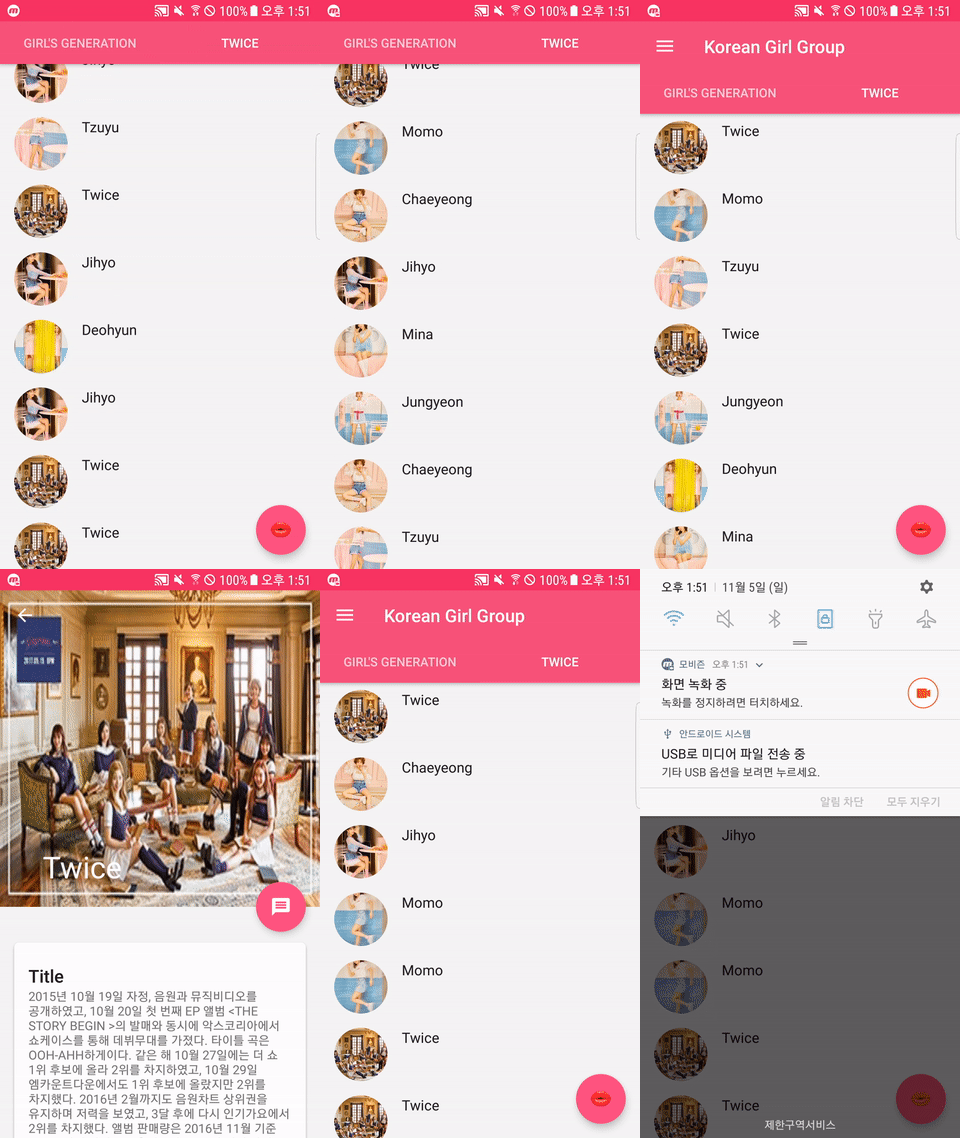
Android Material examples implemented with Kotlin
Kotlin Girls Group version[소녀시대,트와이스] DrawerLayout NavigationView FloatActionButton hide/show FABHideWhenScrollingBehavior(app:layout_behavior) Glide 4.4.0 TabLayout RecyclerView with SwipeRefreshLayout ViewPager Collapsing Toolbar Circle Image Android Transition
Kotlin-Android-Extensions ext. kotlin_version = ' 1.2.10' repositories {
google()
jcenter()
}
dependencies {
classpath ' com.android.tools.build:gradle:3.0.1' " org.jetbrains.kotlin:kotlin-gradle- plugin:$kotlin_version " " org.jetbrains.kotlin:kotlin-android-extensions:$kotlin_version "
apply plugin : ' com.android.application' plugin : ' kotlin-android' plugin : ' kotlin-android-extensions' plugin : ' kotlin-kapt' dependencies {
compile ' com.android.support:design:27.+' ' com.android.support:cardview-v7:27.+' // Kotlin Glide Setting' com.github.bumptech.glide:glide:4.4.0' ' com.github.bumptech.glide:compiler:4.4.0' ' com.github.bumptech.glide:annotations:4.4.0' // Circle ImageView' de.hdodenhof:circleimageview:2.2.0'
apply plugin: 'kotlin-kapt' 를 app 레벨에서 추가해 주세요
Glide Annotation 처리를 위해 [위와 같이 kapt 로 추가해 주세요]
AndroidManifest.xml에 meta-data Tag를 설정하지 마세요
다음을 코딩 후 스튜디오에서 Build/Rebuild Project를 한번 해주세요
@GlideModule
class GirlGroupGlideModule : AppGlideModule (){
override fun applyOptions (context : Context ? , builder : GlideBuilder ? ){
super .applyOptions(context, builder)
val cacheCalculator = MemorySizeCalculator .Builder (context).build()
val defaultMemoryCacheSize = cacheCalculator.memoryCacheSize
val defaultBitmapPoolSize = cacheCalculator.bitmapPoolSize
// Memory 20% 더 사용val girlRAMCacheSize = (1.2 * defaultMemoryCacheSize).toLong()
val girlBitmapPoolSize = (1.2 * defaultBitmapPoolSize).toLong()
builder?.setMemoryCache(LruResourceCache (girlRAMCacheSize))
builder?.setBitmapPool(LruBitmapPool (girlBitmapPoolSize))
/* val diskCacheSize = 1024 * 1024 * 100 builder?.setDiskCache(InternalCacheDiskCacheFactory(context,
diskCacheSize))
val downloadDirectoryPath =
Environment.getDownloadCacheDirectory().getPath()
builder?.setDiskCache(DiskLruCacheFactory(downloadDirectoryPath, "girlCache", diskCacheSize))*/
}
} FABHideWhenScrollingBehavior /* * Created by pyoinsoo on 2018-01-07
* insoo.pyo@gmail.com
* RecyclerView Scrolling FAB hide/show Behavior
* Float Action Button layout속성에 다음을 추가
* app:layout_behavior="com.pyoinsoo.kotlin.design.support.FABHideWhenScrollingBehavior"
*/
class FABHideWhenScrollingBehavior : FloatingActionButton .Behavior {
// constructor() : super()constructor (context: Context ? , attrs: AttributeSet ? ) : super (context, attrs)
/* * FloatActionButton의 Dependency View(Current RecyclerView)
*/
override fun layoutDependsOn (parent : CoordinatorLayout ? , child : FloatingActionButton ? , dependency : View ? )
= dependency is RecyclerView
/* * FloatActionButton Behavior[스크롤시 보이기/안보이기]
*/
override fun onNestedScroll (coordinatorLayout : CoordinatorLayout ,
child : FloatingActionButton ,
target : View ,
dxConsumed : Int , dyConsumed : Int ,
dxUnconsumed : Int , dyUnconsumed : Int , type : Int ) {
// Down Scrollif (child.visibility == View .VISIBLE && dyConsumed > 0 ) {
// FloatingActionButton.OnVisibilityChangedListener은 SAM이 아니므로// object 객체로 만든다object : FloatingActionButton .OnVisibilityChangedListener (){
override fun onHidden (fab : FloatingActionButton ? ) {
super .onHidden(fab)
fab?.visibility = View .INVISIBLE
}
})
// Up Scrollingelse if (child.visibility == View .INVISIBLE && dyConsumed < 0 ) {
child.show()
}
}
override fun onStartNestedScroll (coordinatorLayout : CoordinatorLayout ,
child : FloatingActionButton ,
directTargetChild : View ,
target : View , axes : Int , type : Int ): Boolean {
/* * Vertical Scrolling Check(수직인지)
*/
return type == ViewCompat .TYPE_TOUCH && axes == ViewCompat .SCROLL_AXIS_VERTICAL
}
}